
If your Chrome bookmarks bar has run out of room and every site is a tiny icon, the fix is folders. Group related bookmarks, keep only a handful of daily sites on the bar, and let search handle the rest.
Everything below applies to Chrome on a computer. The menu names come from Google's Chrome Help page on creating, finding and editing bookmarks.
Where do I start cleaning up bookmarks?
Open the full list in one place. In Chrome, select More (the three dots at the top right), then Bookmarks and lists, then Bookmark Manager.
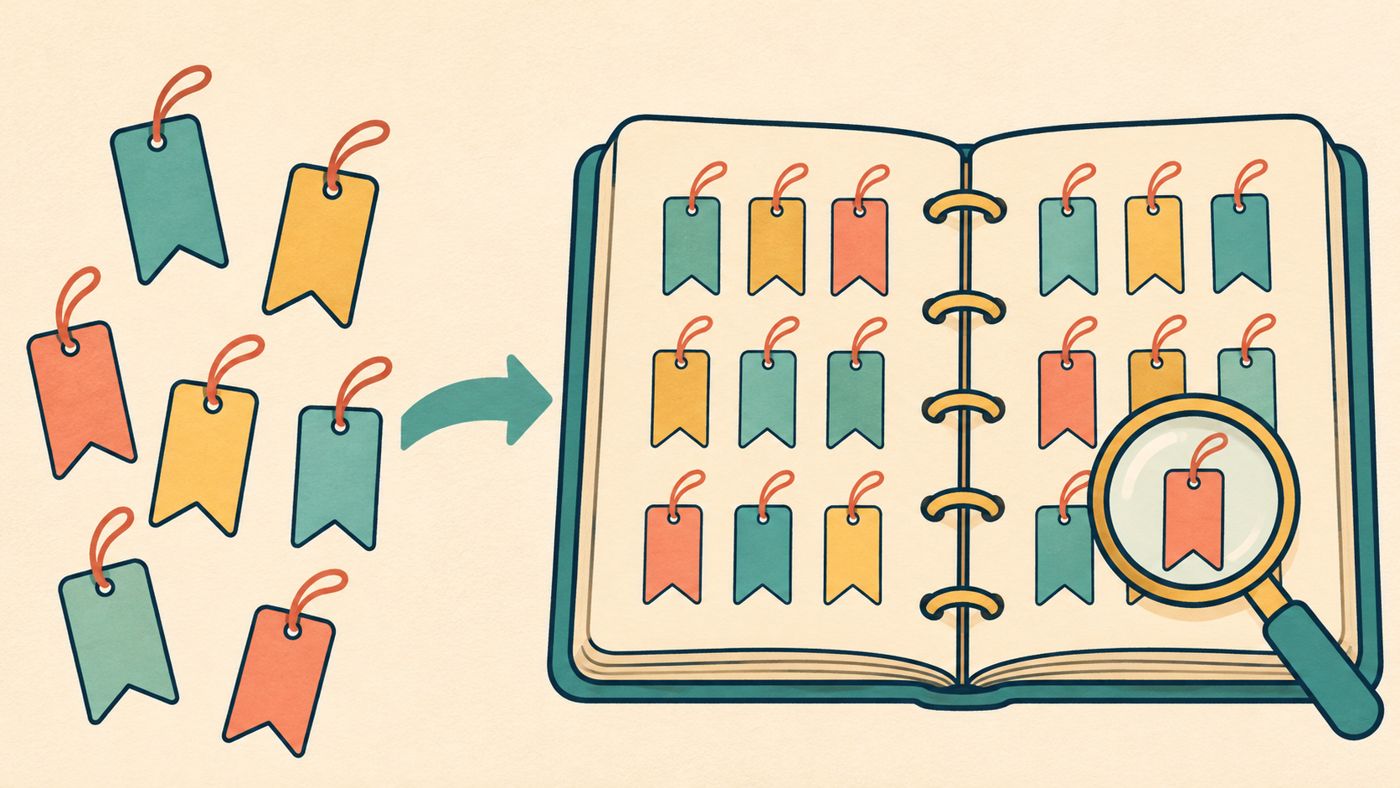
The Show all bookmarks option under the same menu also works. Chrome's help page describes both routes for finding and editing bookmarks.
If the bar itself is hidden, go to More > Bookmarks and lists > Show bookmarks bar to turn it on. Chrome's documentation says the bar is the easiest place to open a saved site, so it's worth keeping tidy.
How should I sort bookmarks into folders?
Pick a few broad categories before you start moving things. Here's an example scheme, not a rule:
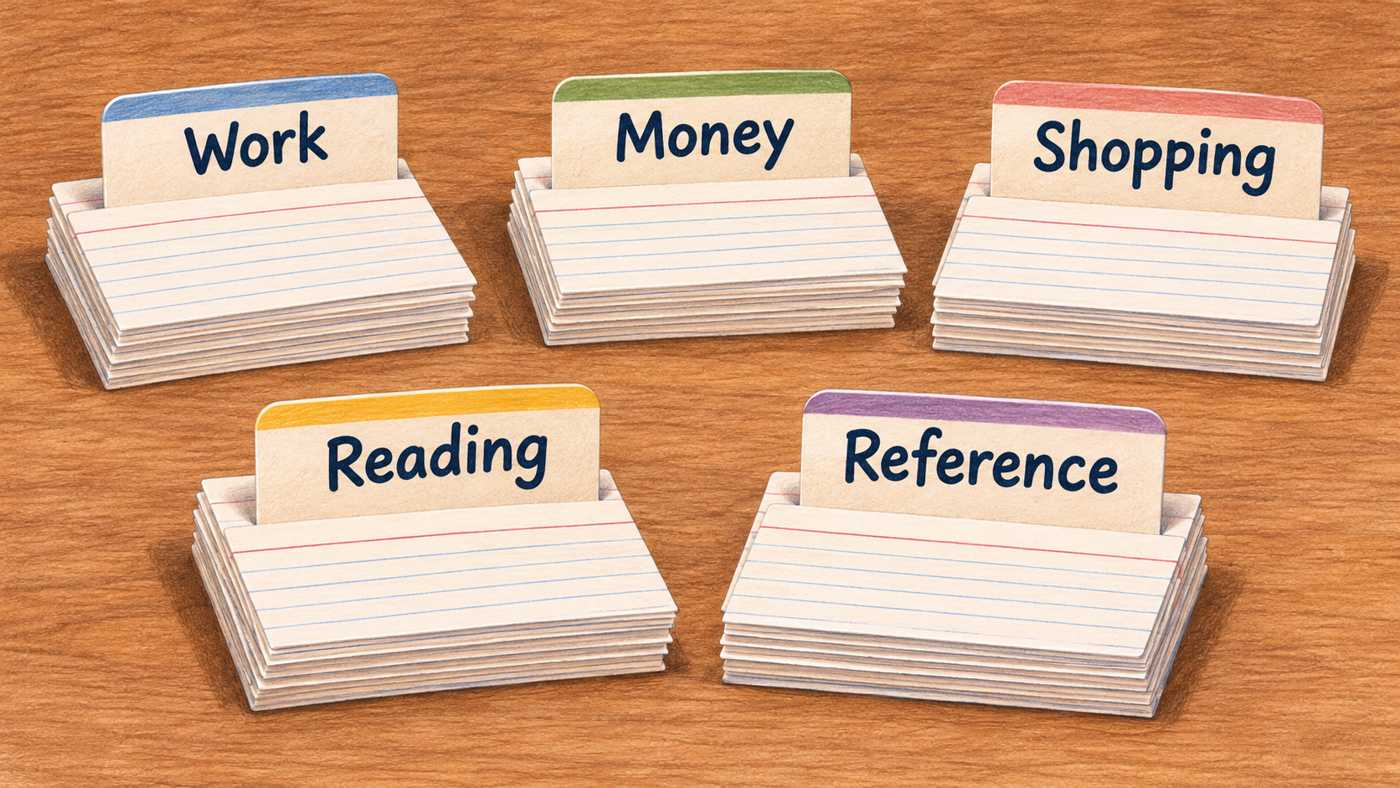
- Work: tools and dashboards you use for your job
- Money: banks, bills and budgeting sites
- Shopping: stores and wish-list pages
- Reading: articles you plan to get to
- Reference: recipes, manuals and how-to pages
Fewer, broader folders are easier to maintain than many narrow ones. You can always split a folder later if it grows too big.
How do I create a folder?
There are two ways, both listed in Chrome's help page:
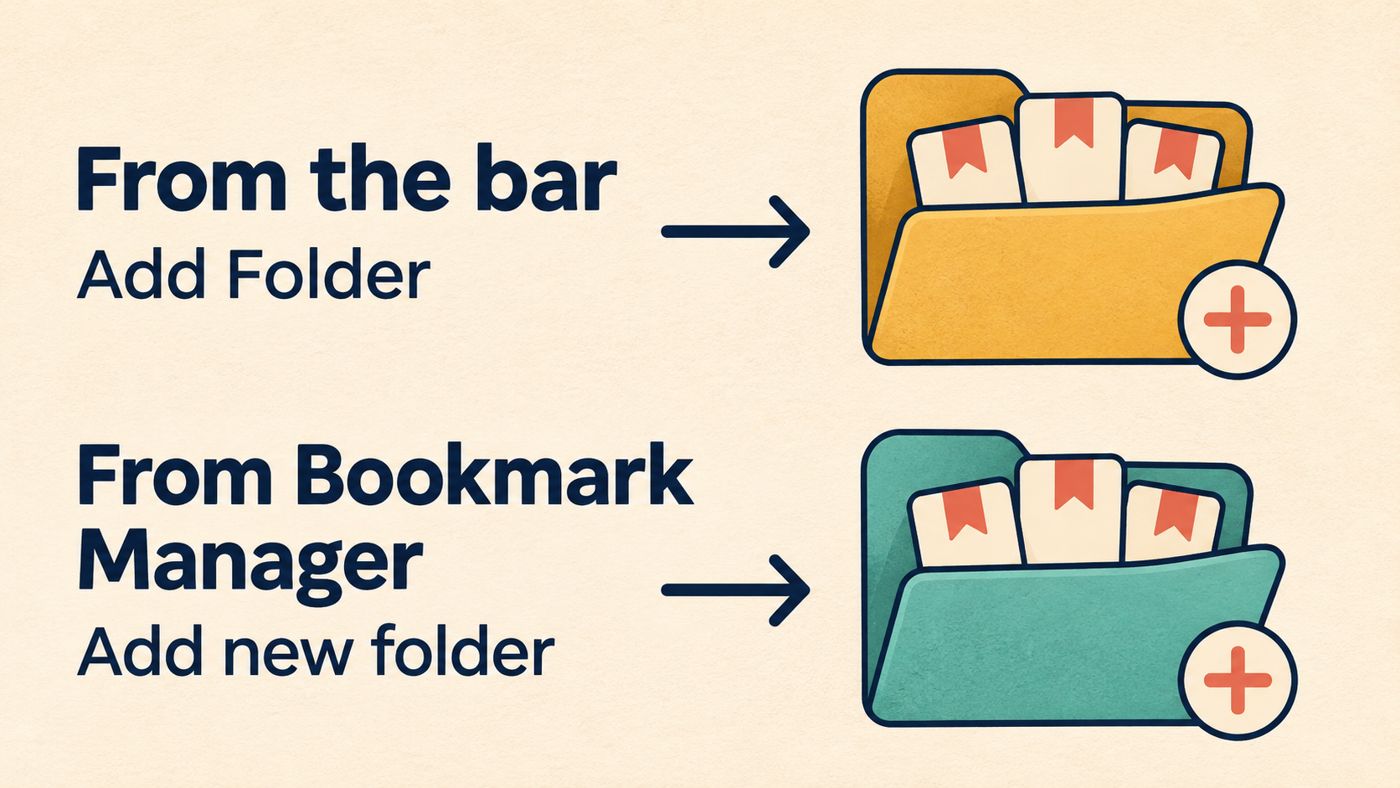
- From the bar: right-click an empty spot on the bookmarks bar and select Add Folder. Type a name and save.
- From Bookmark Manager: open More > Bookmarks and lists > Bookmark Manager. At the top right, select More, then Add new folder.
Repeat until your categories exist. The folder will appear on the bar or in the manager, depending on where you made it.
How do I move, rename and delete bookmarks?
In Bookmark Manager, drag each bookmark into the folder where it belongs. Work through the list one category at a time instead of trying to sort everything in one pass.
To rename or change a single bookmark, hover over it, select More, then Edit. To change several at once, select Edit at the top of the Show all bookmarks view for bulk editing.
For dead or duplicate links, hover over the bookmark or folder, select More, then Delete. Be careful with folders. Deleting one removes the bookmarks inside it, so check the contents first.
The help page also has a section on sorting your bookmarks, which can help once folders are in place.
What should stay on the bookmarks bar?
A useful test is whether you open the site most days. If so, leave it on the bar. If not, move it into a folder.
A sensible end state is a short row of daily sites followed by your category folders. Everything else lives in the manager, one click or search away.
How do I find a bookmark without browsing folders?
Search is the fastest backup when you forget where something went:
- Click the address bar and type @bookmarks.
- Press Tab or Space, or pick Search bookmarks from the suggestions.
- Type a keyword and select the result.
Because search works well, you don't need deeply nested folders. One level of folders plus a good bookmark name is usually enough.
A note on syncing
Chrome's help page says that if you sign in with your Google Account, you can use your bookmarks on all your devices. That means a cleanup on your computer may carry over to other signed-in devices. Delete with that in mind, and review what's in a folder before removing it.
Quick checklist
- Turn on the bookmarks bar if it's hidden.
- Open Bookmark Manager and create 4–6 folders.
- Move bookmarks in by category.
- Delete dead links and duplicates.
- Leave only your daily sites loose on the bar.
- Use @bookmarks search for anything else.
The result should be a bar you can read at a glance, with everything else filed away and searchable.
 Technology